
How to Create a One Page WordPress Website (2026 Guide)
Planning to create a one-page, professional-looking website with WordPress?
The best use of a one-page site is when you have a very clear message with the intent to convert. Such as a SaaS landing page or a personal portfolio.
A one-page site will work best for launching products and running marketing campaigns as well. One-page sites may not work well for websites that contain a lot of information or that have different categories of content.
These designs are often used for landing pages, creating events, and making portfolio websites.
Let’s quickly get started and create a one page website.
Why Choose WordPress for Creating a One Page Website?
WordPress is often considered as the best platform for creating websites.
Here are a few reasons that make WordPress a reliable platform:
- WordPress is a widely-used content management system (CMS) that is known for its ease of use and user-friendly interface. It allows users to create and publish any kind of content without prior knowledge of coding.
- WordPress is so popular because of its high level of customizability. With a plethora of themes and plugins available, users can easily enhance the appearance and functionality of their website to create a unique design.
- WordPress is designed with search engine optimization (SEO) in mind, making optimizing your website for better search engine rankings easy.
- WordPress is a secure platform that is regularly updated with new security features and patches to keep your website safe from hackers and malware attacks.
How to Create a One Page WordPress Website (Step-By-Step)
This section explains how to create a one page WordPress website in a beginner-friendly manner.
When creating a one-page WordPress website, there are two main methods available depending on the amount of control and flexibility you require.
Theme-Based Method
This method involves utilizing a one-page WordPress theme that provides pre-made sections for your content. This method is a fast and easy way to start creating a website, which makes it great for beginners.
Page-Builder Method (Elementor / Gutenberg)
If more design flexibility and customization are needed or if you want full control over the layout and style of the site, this option allows you to build a page using a visual editor.
Step 1: Choose a Hosting Provider and a Domain Name
The first step to build any website is to select a hosting provider. Many hosting providers are available, but we recommend using a popular one such as Kinsta, as they provide great features and support that other providers lack.
Why Kinsta Should Be Your Hosting Provider?
5 reasons to select Kinsta as your hosting provider.
- Kinsta is a premium managed WordPress hosting company that provides its customers with reliable and fast hosting services. Since its release, it has quickly become one of the leading hosting providers for WordPress users around the world.
- Kinsta’s hosting services are built on top of the Google Cloud Platform, which provides a highly scalable and reliable infrastructure for its customers. The company also uses advanced technologies such as LXD containers and Nginx to deliver fast and secure hosting services.
- Kinsta is designed to meet the needs of businesses and individuals who want to host their WordPress websites on a reliable and fast platform.
- Kinsta provides a range of hosting plans to meet the needs of different types of WordPress users, from small personal blogs to large enterprise websites. The company provides a user-friendly interface that makes it easy for customers to manage their websites and hosting accounts.
- Kinsta provides 24/7 support to its customers, ensuring that any issues or problems are quickly resolved as soon as possible.
Once you have selected Kinsta, you will need to register a domain name. A domain name is the web address that visitors will use to access your website, such as “www.xyz.com”. Choose a domain name that’s relevant to your business and easy to spell.
Step 3: Install WordPress
Once Kinsta is on board, it is very simple to install WordPress. Kinsta comes with a one-click installation process, making it easy and convenient to install WordPress.
Step 4: Select a Theme to Create a One-Page WordPress Website
Now that you’ve stepped inside WordPress, the crucial step is selecting and installing a theme.
In simple words, a theme defines the appearance and design of a WordPress website. With themes, you can control your website’s headers, footers, logos, and page layouts.
We recommend installing the Responsive theme as it provides excellent support and is a high-performing theme.
Why Responsive Theme is a Reliable Theme?
Here are 3 reasons why the Responsive theme is a great one.
- Responsive is a fast, lightweight, and fully customizable theme that loads completely under 100 KB.
- Responsive themes help websites rank higher in search engine results pages (SERPs) as they are optimized for SEO.
- Responsive theme ensures that every website looks great and performs well on any device, from desktops to smartphones and tablets.
How to Install Responsive Theme
Now let’s understand how to install the Responsive theme.
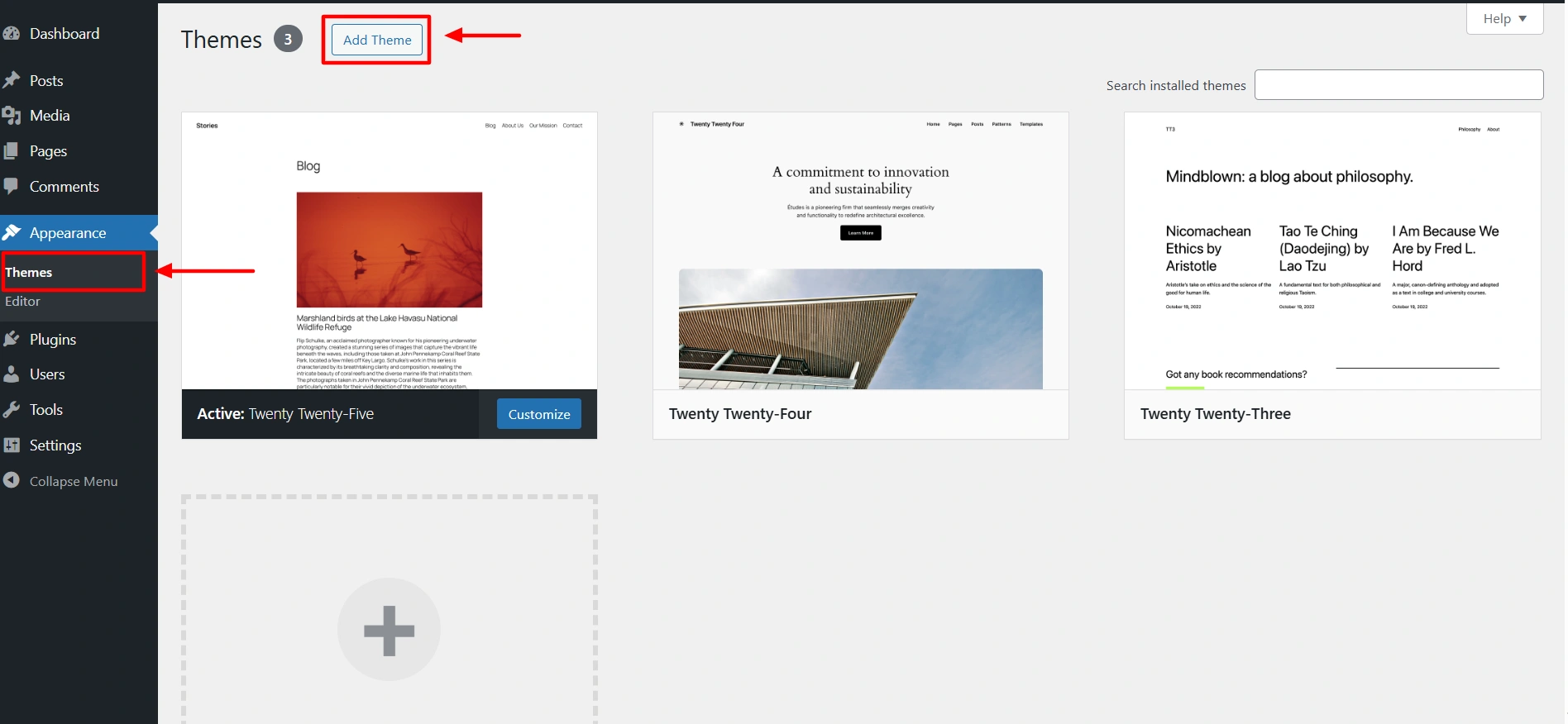
In the WordPress dashboard, select APPEARANCE > THEMES.
Click on the “Add Theme” button.
Search for “Responsive“ in the search bar option provided above.
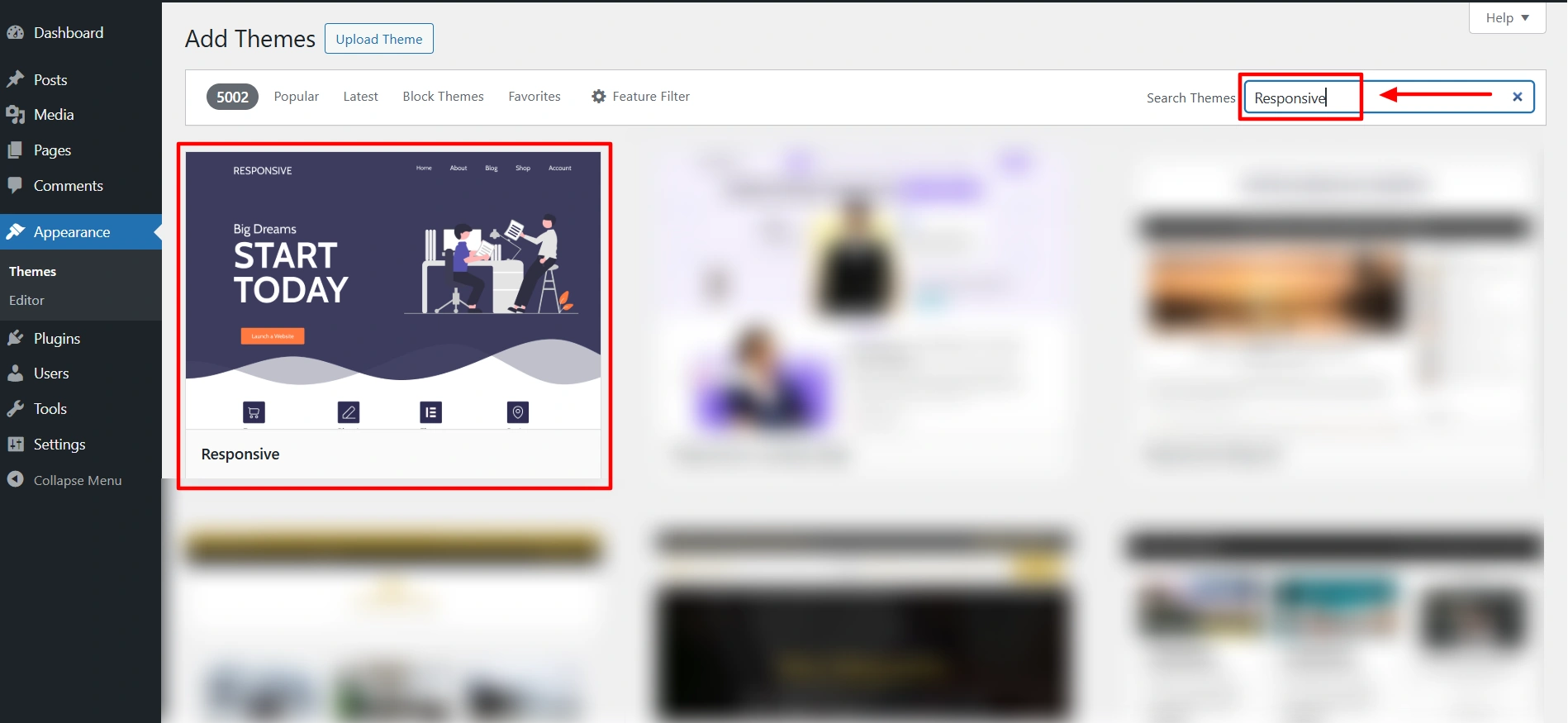
Place the cursor over the Responsive theme and click on the “Install” button.

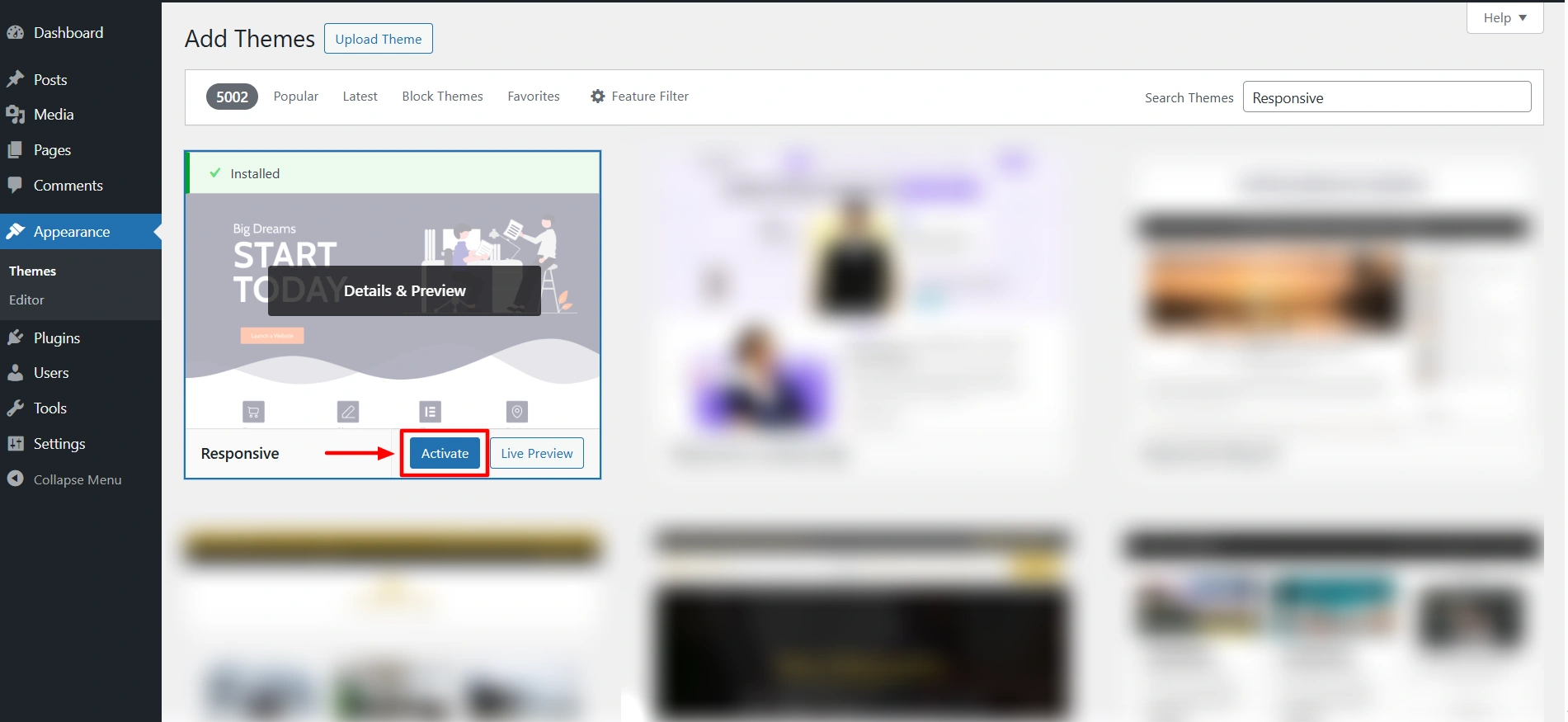
In the following step, click on the “Activate” button.
Step 5: Install Responsive Starter Templates
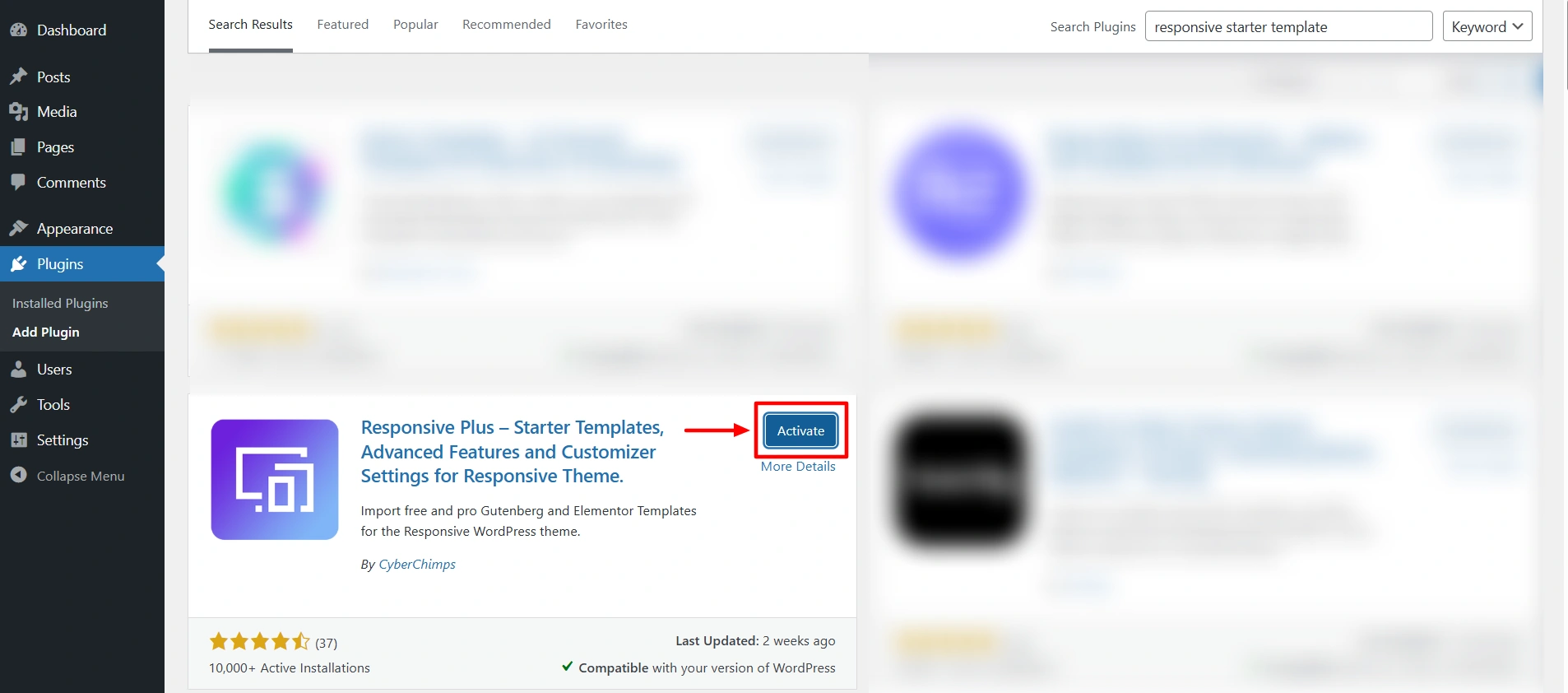
Once the Responsive theme is active, the next successive step is to install the Responsive Starter Templates plugin. Coming with 100+ starter templates, you can easily import any template that suits your niche.
To install the Responsive Starter Templates plugin, follow the below steps.
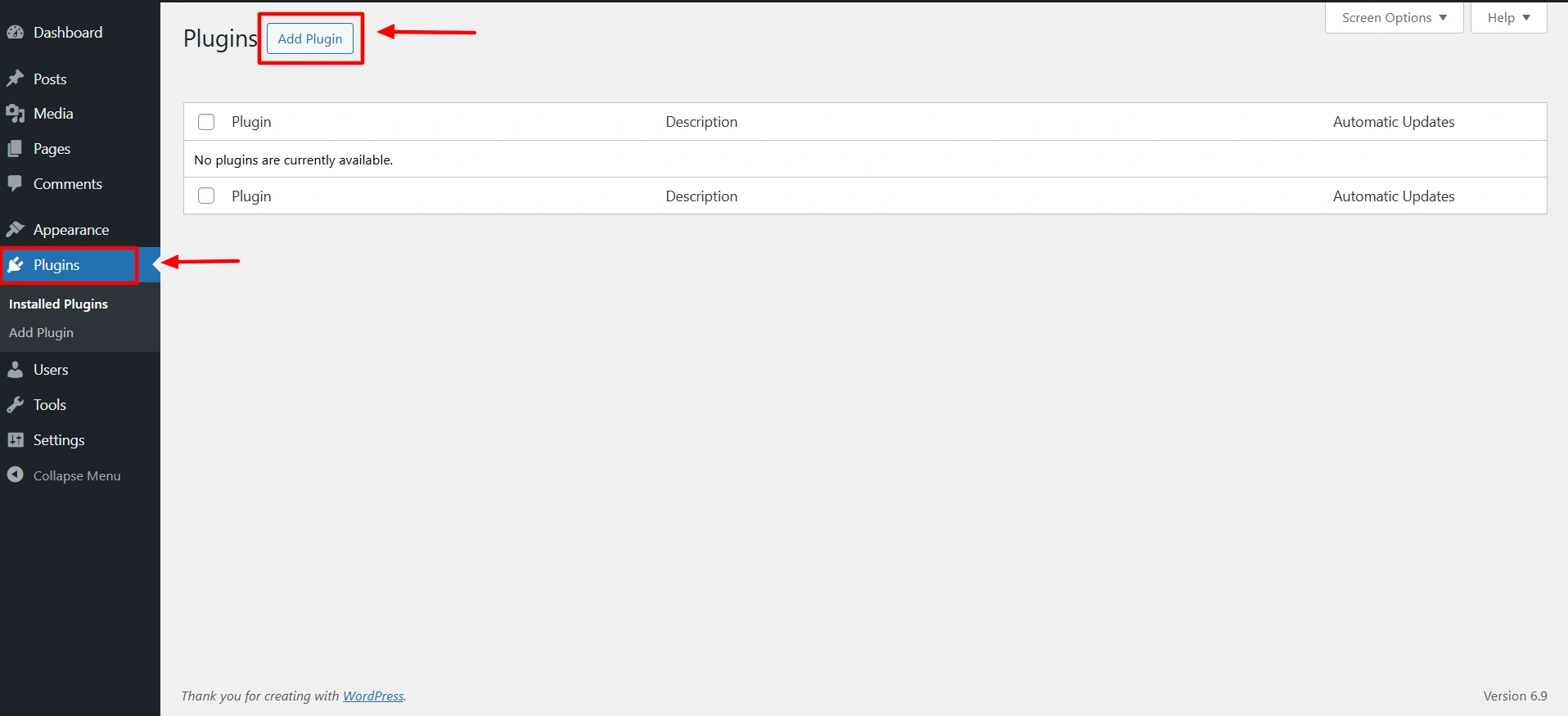
In the WordPress dashboard, click on “Plugins” and click on the “Add New” button.
In the above search option, search for “Responsive Starter Templates“ and click the “Install Now“ button.
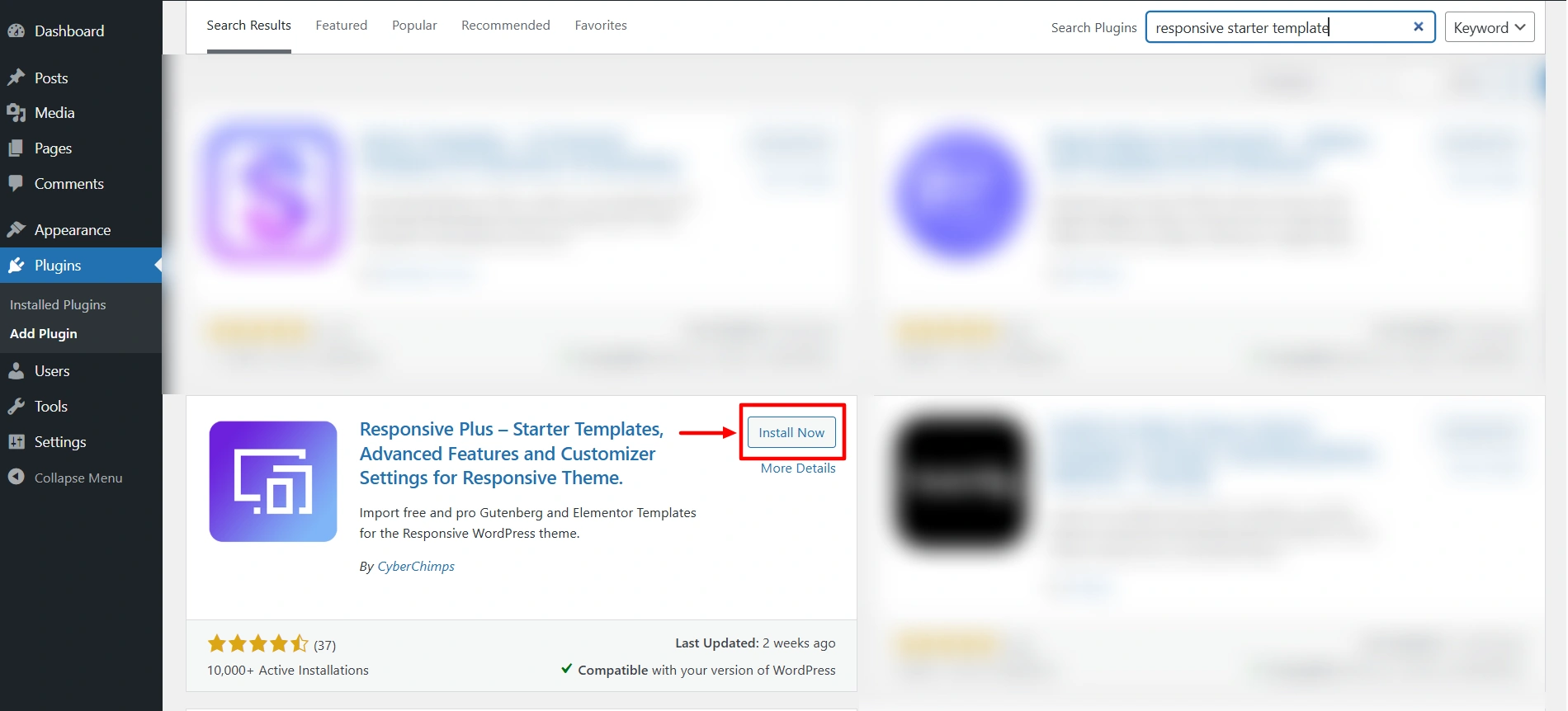
Once you have Installed the plugin, click on the “Activate“ button.
Step 6: Install One Page Template
Having activated the Responsive Starter Templates plugin, it is time to create a one page website.
Let’s see how we can import the One Page template to build our website.
Click on “Plugins” and press “View Library” button.
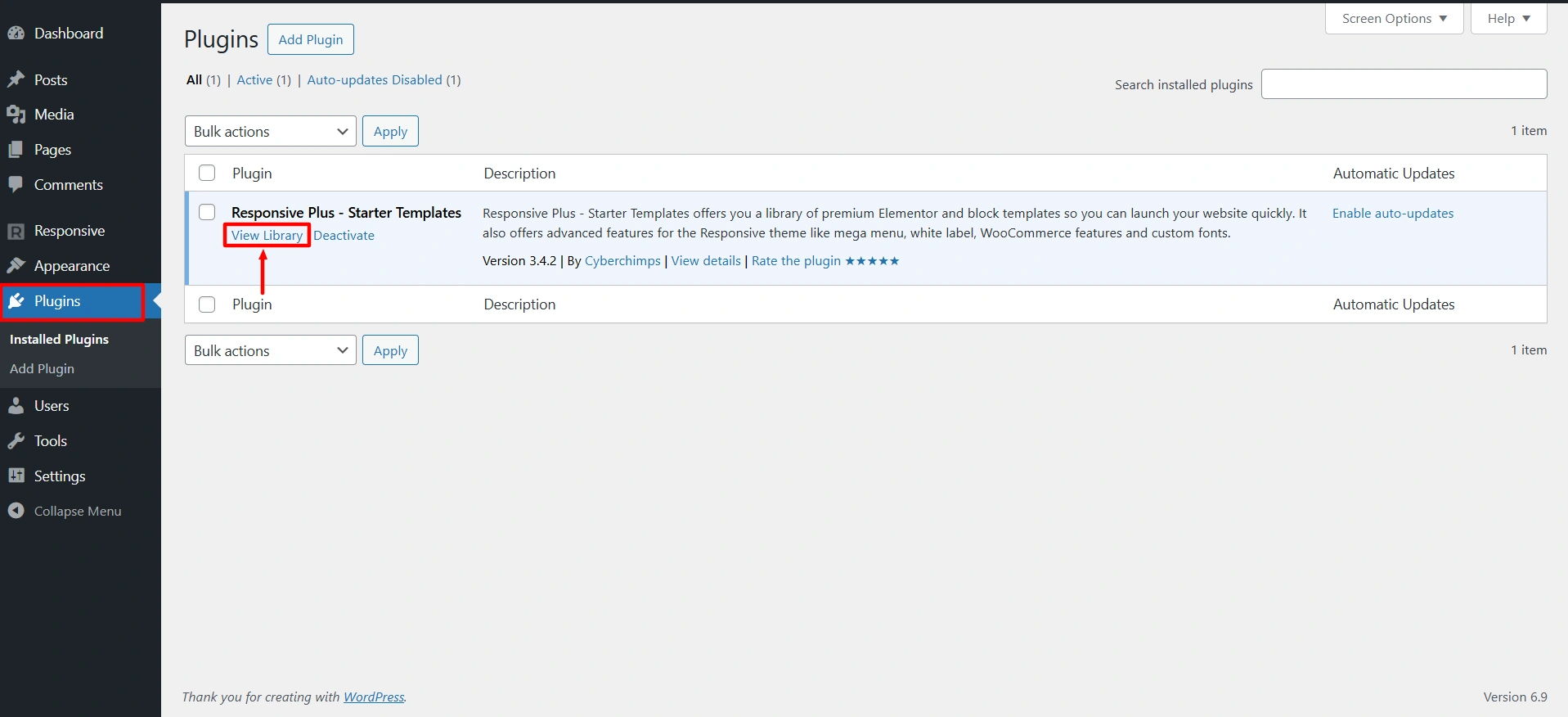
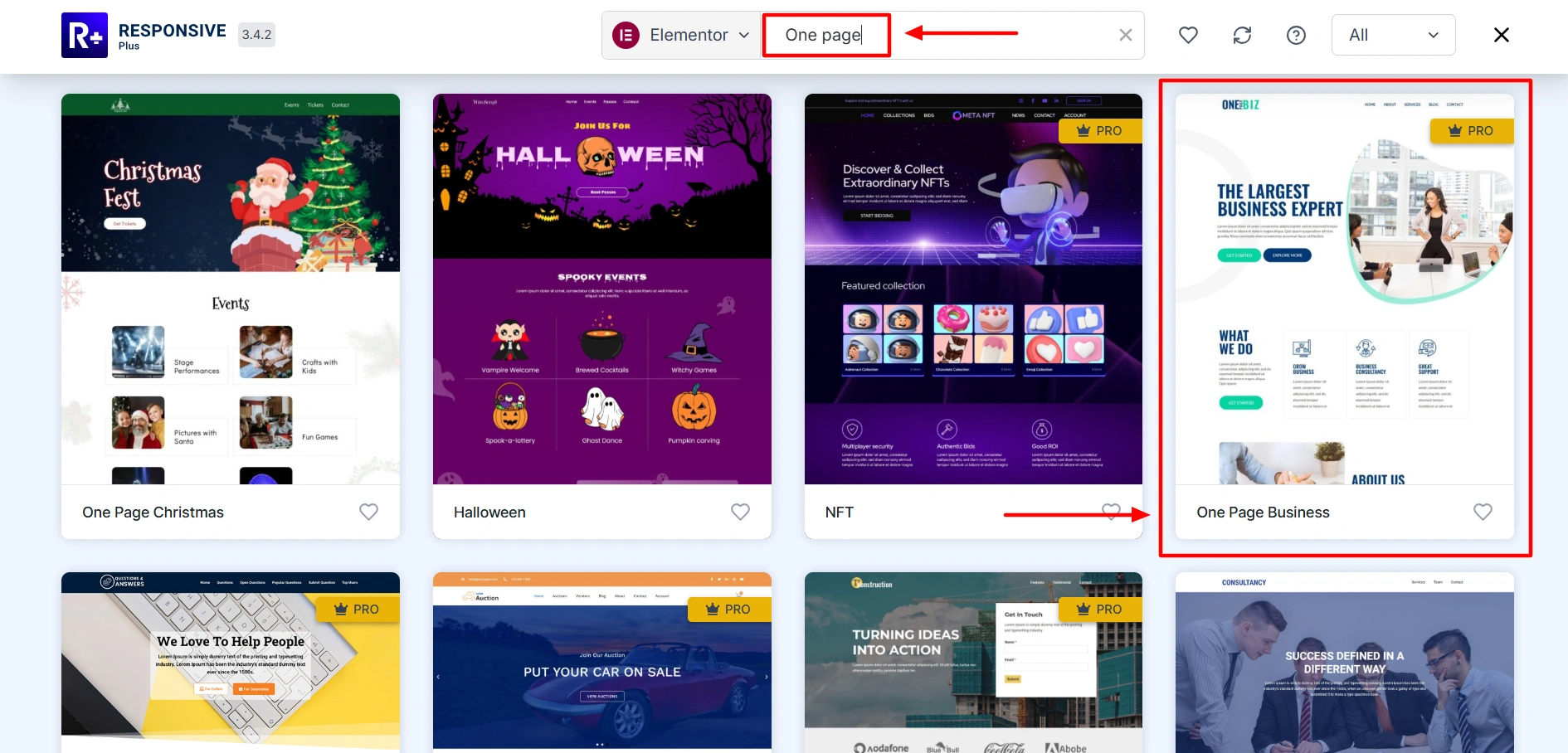
Search for “One Page” in the search bar option, and click on the “One Page Business“ template.
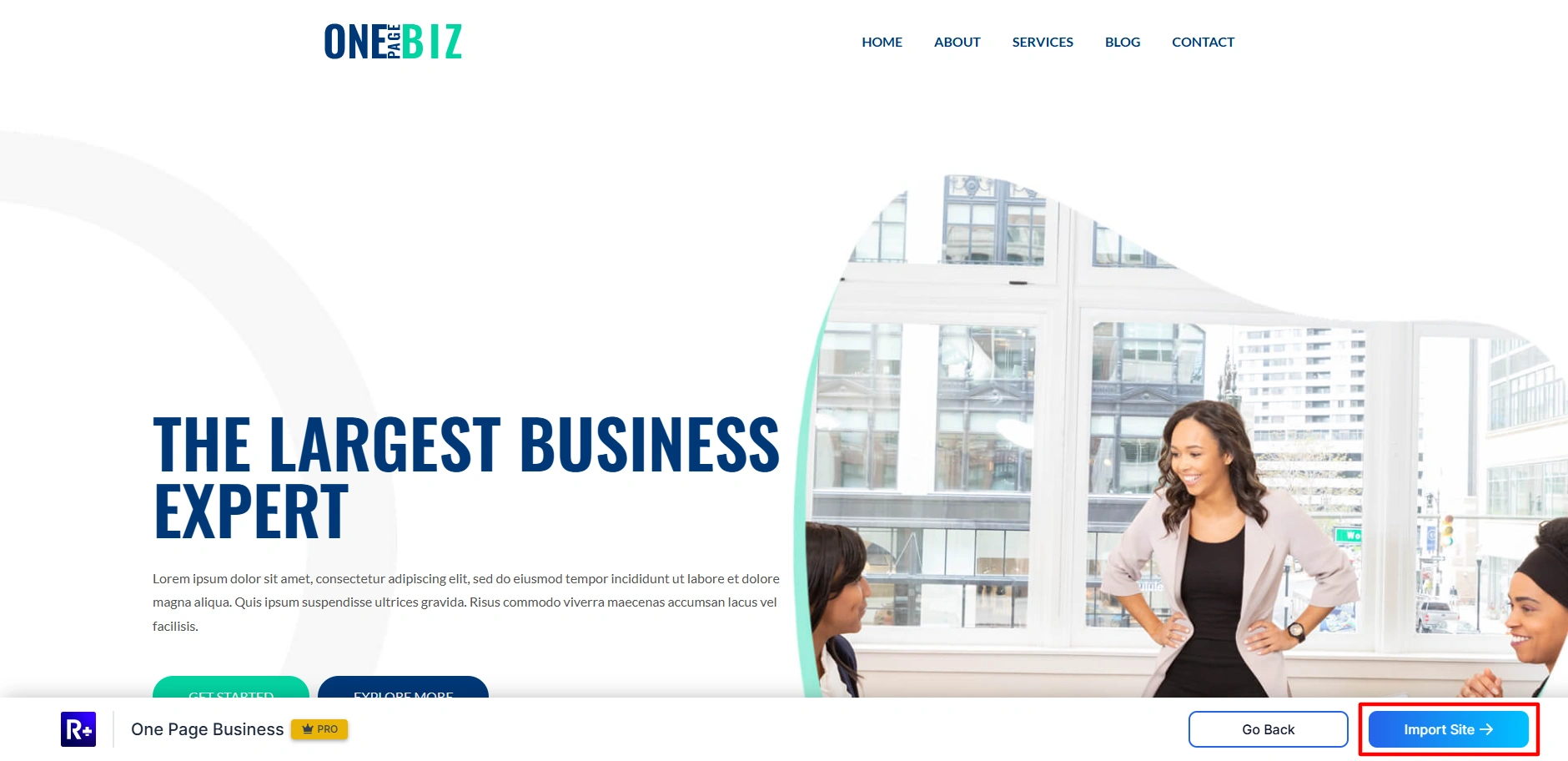
Click on the “Import Site“ button.
Step 7: Edit Your Content with Elementor
On launching the one page site, it’s time to edit the main content of your website in your desired style. To do this, follow these simple steps.
Click on “Edit with Elementor“.
You get a variety of options to customize your website, like the typography settings, images, videos, buttons, and much more.
Step 8: Publish Your One Page Website
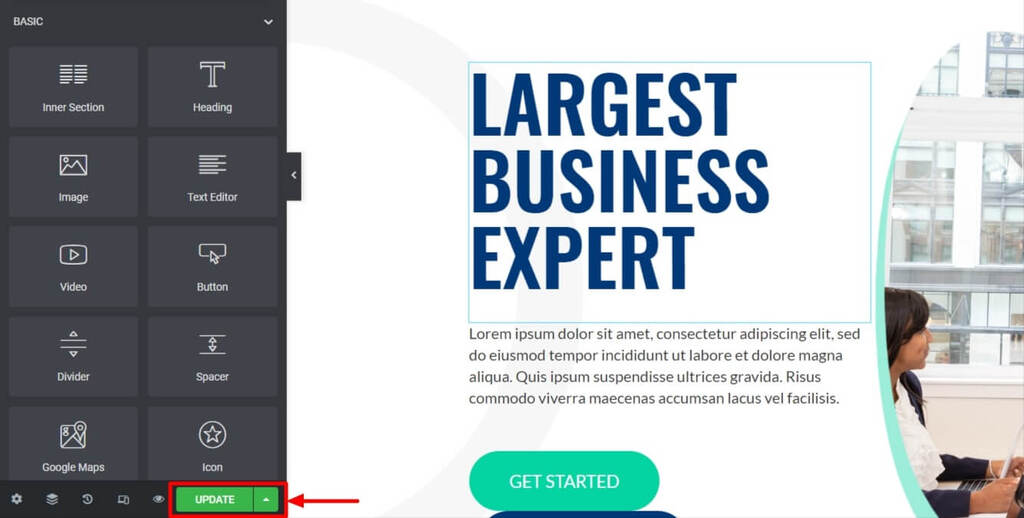
Once you have customized the content of your website, click on the “Update“ button to launch your one page WordPress website.
Best One-Page WordPress Themes (2026)
Below is a round-up of a few of the best WordPress one-page themes (both free and premium) on the market today.
Zerif by ThemeIsle
With over twenty-thousand downloaded on the WordPress Theme Directory, the Zerif one-page theme is one that many are sure to love. Most of the tweaks and changes that can be made in the theme are done directly through the WordPress Customizer so it’s easy to setup and go.
The free version is great, but if you want to unlock more features your can upgrade to the Pro version on ThemeIsle.
Intro by aThemes
The Intro does a great job as giving your business a slick introduction. It uses parallax headers and backgrounds and even includes an animated text header for a bit of pop.
Other features include it being a responsive design, Google Fonts integration, and easy theme options that make customizing the theme very easy. Oh, and it’s free!
Brooklyn by UnitedThemes
If you’re looking for a versatile one-page WordPress theme, the Brooklyn theme is sure to impress. The theme comes with a literal one-click install that will have you up and running in no time. And with 13 pre-designed templates and boasts to have endless design possibilities. You can purchase or demo the theme on Themeforest to get a real feel for what the theme can do.
Moesia by aThemes
With a custom header, parallax backgrounds and being fully responsive, it’s hard to not love the one-page Moesia WordPress theme. And with a separate page for your blog, your bounce rate with this one-page theme will likely not be affected like some other similar themes might. You can try out Moesia for free and upgrade to the Pro version when you’re ready.
SimpleFlex by ThemeLuxe
Flat design is a hot design trend and it’s one that looks to be following into 2025. SimpleFlex is an easy-to-use theme with a clean, flat, modern, responsive design that is sure to please more than a few.
With a wide variety of shortcodes, more than 50 animations and transitions, and other great design features, this one-page WordPress theme is top-notch.
Horizon by Zorbix
If you’re looking for a theme that is crisp and elegant, then WP Theme delivers on all levels. The theme has Visual Composer and Slider Revolution built in along with multiple shortcodes, plenty of one-click theme options, and unlimited color choices to make designing your site as easy as possible.
Onesie by Graph Paper Press
The Onesie theme by Graph Paper Press is a one-page WordPress theme that is great for portfolios, landing pages or whatever event you can think of. As you would expect from a premium WordPress theme shop, the Onesie theme has the best of the best: cross-browser compatible, translation ready, custom backgrounds and easy customizations made in the front-end using the WP Customizer.
Onesie is free to use, but you can upgrade to Onesie Pro for more features and options.
SEO and Performance Tips
Here are few tips to remember to make your one page WordPress theme SEO friendly and high performing. These tips apply to every landing page WordPress setup.
Page Loading Speed
By properly caching items and limiting the use of images and heavy animations, you can keep the page light and load much quicker. Quicker page loads give users better experiences and will improve their ranking on search engines.
Tracking User Scroll Depth
By tracking how far users scroll down pages, you will know which sections of your page engage them and where you lose them. By doing this, you can reorganize sections and make it easier to convert those who engage with you.
Utilize Schema Markup
The schema, or structured data, provides a way for search engines to understand your content. Even on a single page site, structured data will help improve visibility with rich results.
Common Mistakes to Avoid
Websites that consist of just one page can be effective.However, small mistakes can negatively impact the user experience and also the conversion rate of your website.
Below are a few examples of common mistakes that can be made with a one-page website:
Overloading Sections
Trying to fit everything you want to say into one section is likely to cause an issue. When your sections are too long, users will lose focus and begin to scroll past the content that is most important to them.
Difficult Navigation
Users will likely become frustrated if they cannot quickly get to the section of your website that they wish to view. A simple sticky menu with well-defined anchor links can greatly enhance the user experience.
Not Establishing a CTA Hierarchy
All buttons should not say, “click here.” The main CTA should be the main focus of the website and the remaining CTAs should all support the main CTA.
When to Switch to Multi-Page
When your one page WordPress theme feels limiting, then it is time to expand. Before you switch to a multi-page layout, it’s important to understand if your current one-page design is achieving your business objectives.
The following checklist contains some common indicators that your website has outgrown a single page layout:
- You have too many sections or categories and users are confused about how to navigate through them.
- You are trying to target more than one keyword or service.
- Your visitors are requesting more written content or other resources from you.
- You would like to create a blog, publish case studies or provide documentation.
If you’ve checked off more than two of the above items, then you clearly need to establish a multi-page website for your business needs.
Wrapping up!
Now that you have a better understanding of how to create a one page WordPress website now, grab the Responsive theme and start creating your one page website.
With Responsive’s one page business template, it is a 2 step process to easily create a beautiful one page WordPress website.
Many of the one page website examples start in this similar manner.
Hope you enjoyed reading this article. If you did, don’t forget to check our other similar articles:
- How to Create an SEO Portfolio Website with WordPress
- Best WordPress Themes For Entrepreneurs
- Best SEO WordPress themes
Now that you have thought of creating a one-page website, grab the Responsive theme now!
Leave a Reply