
How to Duplicate a Page in Your WordPress Website
Did you ever come across such a situation when you wanted to revamp a specific page by retaining the content?
Of course, there’s quite an easy way to do so. You can effortlessly copy and paste the content to save it somewhere else. Although this technique can work for text content, it wouldn’t have any impact on a page template, SEO optimization, featured image, or other aspects.
Also, WordPress doesn’t support any built-in duplicate button, if you were thinking of executing this task manually. If you walk on this path, you’d have to invest multiple hours and a lot of effort to do so.
What if you got to know there was an easier way to duplicate pages in WordPress, just within a few clicks? That’s certainly possible. This post comprises all the information that’d help you clone pages smoothly.
When Can You Duplicate a Page in WordPress
When it comes to duplicating a page in WordPress, there are certain instances when you might feel the need to do so, such as:
- When you wish to create multiple pages with the same layouts and format
- If you’re handling a client’s site and don’t want to mess things up
- When you’re creating a blog post series with a similar design
- If you’re going to make certain changes in the content without editing the original version
How to Duplicate a Page in WordPress
To begin the duplicating procedure, you’d need to do the following:
- Access to the admin panel of the WordPress website
- Duplicate Post Plugin
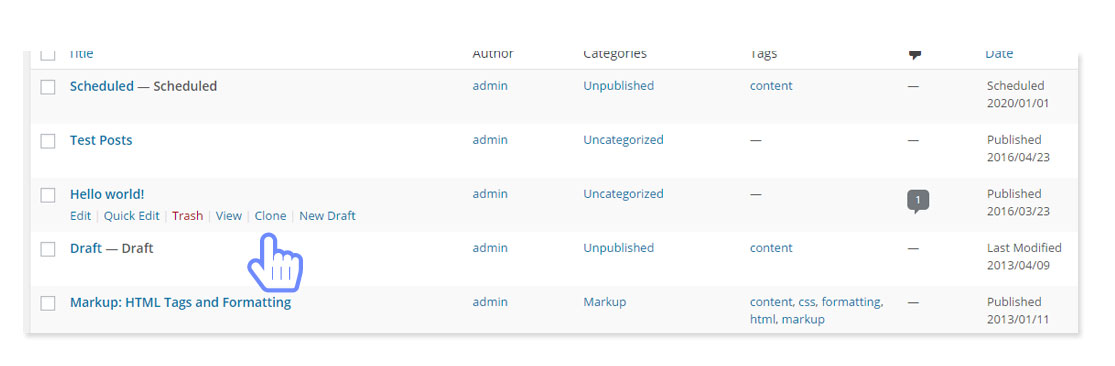
Although there are a variety of other plugins that you can find on the internet, the Duplicate Post Plugin is the easiest way that you can use to clone pages and posts. So, here are the steps that you can follow:
- Install the Duplicate Post Plugin and activate it
- And then, click on Pages >> All Pages
- Now, hover the cursor on the page that you wish to duplicate
- There, you’ll get to see two different options – Clone and New Draft
- Click on Clone to create a replicated version of the page
- You can also click the New Draft if you wish to clone the page and start editing right away
- Once done, you can either save the page as a draft or publish it
Page Duplicator Plugins
As far as the variation in plugin options is concerned, you have a few more choices in front of you. Here are some of the best plugins that’d help you find the answer to – how to duplicate a page in WordPress?
Duplicate Post Plugin
Image source
This one plugin makes it easier for newbies to clone their pages and posts on a WordPress website. The Duplicate Post Plugin not only enables you to clone, but you can also play around with varied customization options.
To keep the difference enabled, you can add a pre-defined prefix or suffix after or before the title of the page you cloned. Moreover, depending upon the user roles, you get to limit the plugin’s functionality as well.
Customization Setting for Duplicate Post
The duplicate post plugin supports posts and pages by default. Let’s look at all settings. To Configure the Duplicate Post plugin, go to Settings > Duplicate Post page.
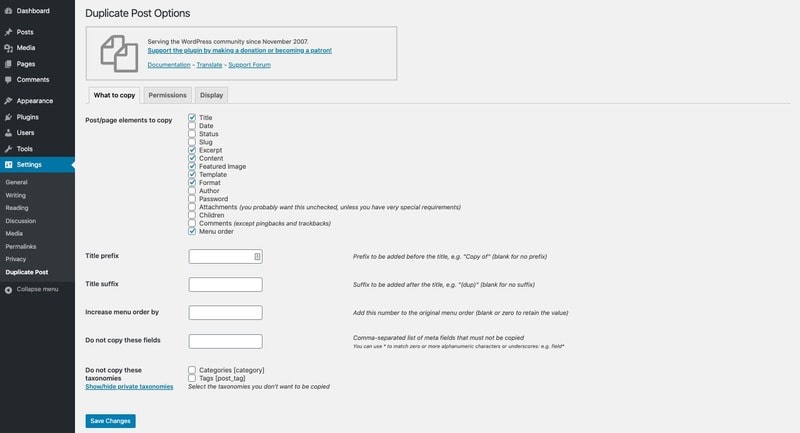
The settings page is divided into three tabs. The first tab, “What to Copy,” allows you to select what to copy while creating a duplicate. You can check items that you want to copy and uncheck items that you don’t want to be copied.
Next, go to the permissions tab.
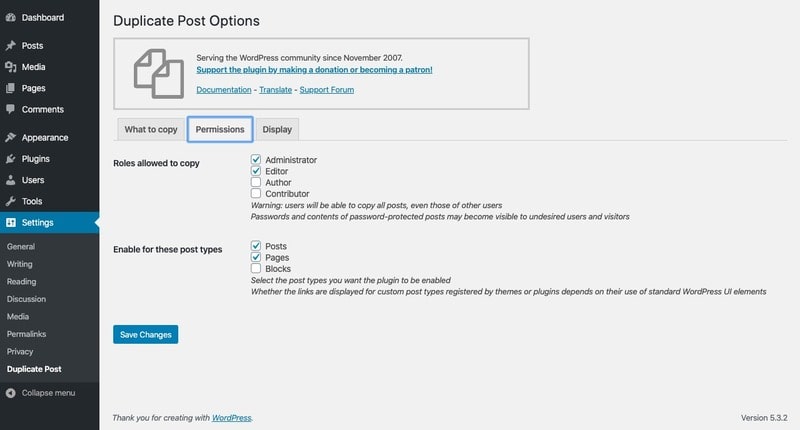
By default, the plugin allows users with the user roles administrator or editor to create duplicate posts. It also enables the duplicate post feature for the post types “posts” and “pages”.
If you are using any custom post types on your website, then those post types will appear here. You can select whether you want to enable the duplicate post feature for those post types as well.
Finally, click on the tab Display to choose where you want to display the clone post links. By default, the plugin shows them on the post list, edit screen, and admin bar
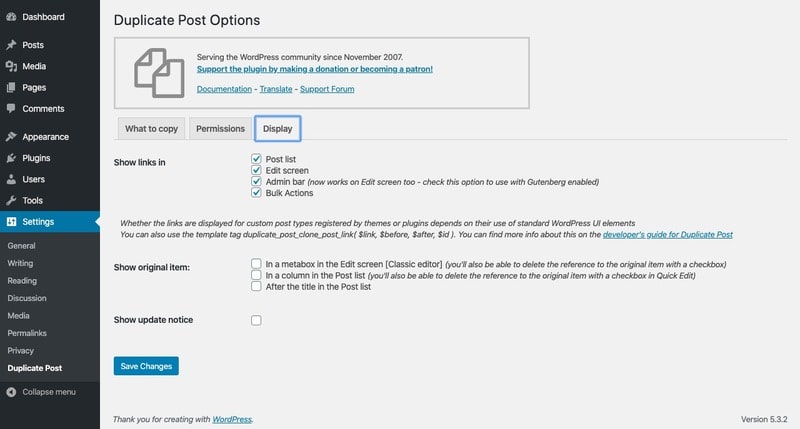
Click on the button Save Changes to store your settings.
Pros:
- Easy-to-use interface
- Can clone custom fields
- Compatible with major site builders
Cons:
- Doesn’t work with old versions
- May require certain setups to work easily
Duplicate Page and Post Plugin
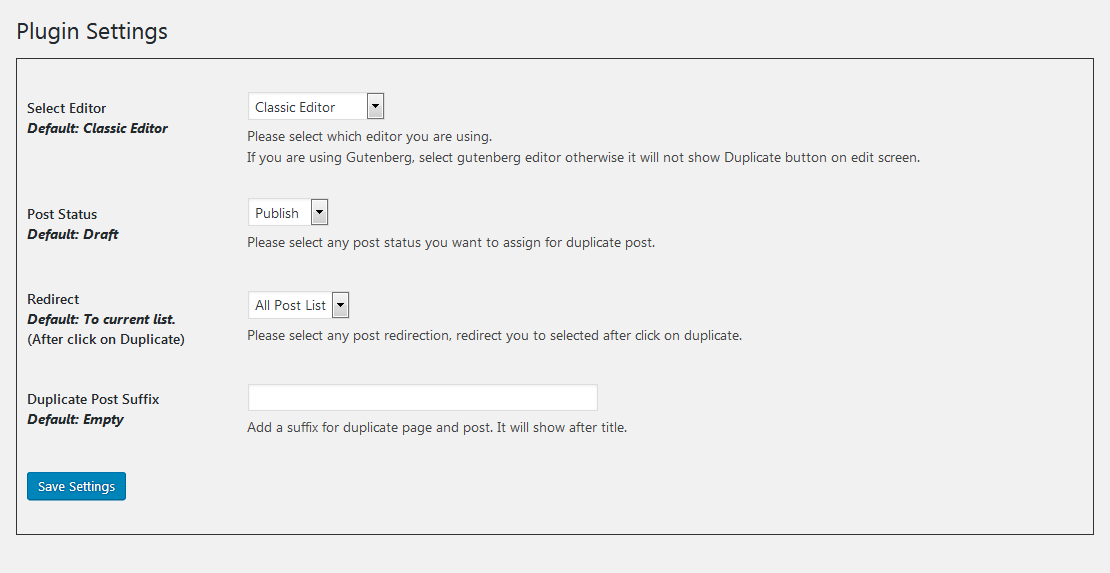
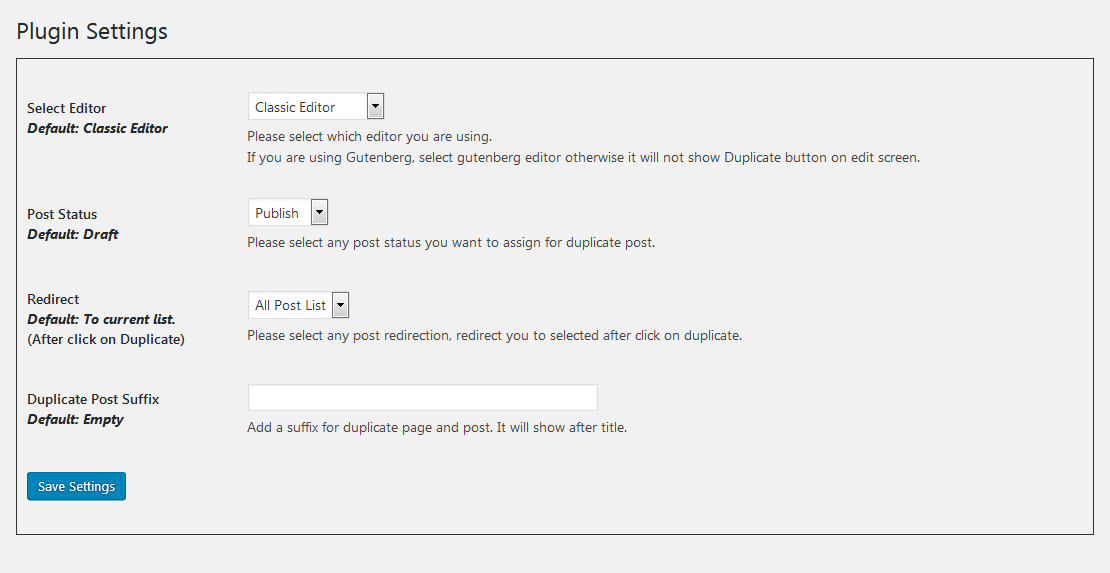
The Duplicate Page and Post plugin offers such functionality that makes it easier to figure out how to copy a page in WordPress. Just with a click, you can clone whatever you want, including the custom post, and save them as drafts.
Although this one doesn’t come with an extensive range of features, however, in comparison with others, it’s quite light and fast.
Customization Settings for Duplicate Page and Post
To configure the Duplicate Page and Post plugin, go to Settings> Duplicate Post page.
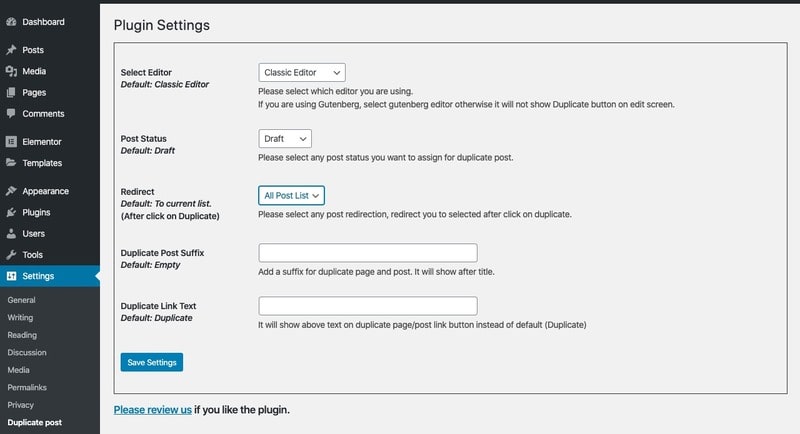
Select the editor you are using and the post status you want to assign to the duplicate post.
Pros:
- Lightweight and fast
- Compatible with Gutenberg
- Option to include post suffix
Cons:
- Complicated interface
- Restricted features
Post Duplicate Plugin

Image source
Another option that you have in the basket is the Post Duplicate Plugin. This one can help you create exact clones of the posts and pages. You can even duplicate the custom post along with custom fields and taxonomies.

Customization Setting for Post Duplicator
To configure the Post Duplicator plugin, go to Tools > Post Duplicator
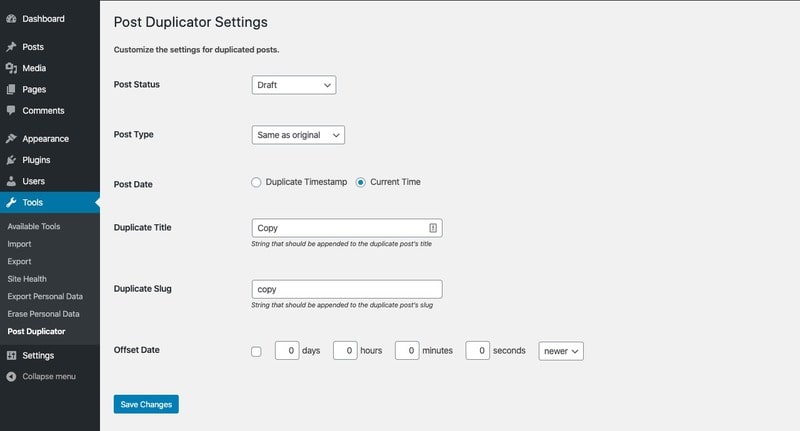
Select the post status and post type you want to assign to the duplicate post.
Pros:
- Works as a breeze
- Relevant settings
- Supports custom post type
Cons:
- Doesn’t clone comments
- Lacks adequate guidance
Keep SEO in Mind When Duplicating Content
If two WordPress copy page URLs can access the same content, that’s an instance of duplicated content on your website, which can severely hamper your SEO. For instance, if you’ve just copied a page on your blog and altered the URL a bit, like:
- http://www.domain.com/Duplicating-content
- http://domain.com/Duplicating-content
Although you may not realize the significant difference between these two URLs, it can confuse Google as to which one to display in the search results. Moreover, if both these pages have the same:
- Meta descriptions
- Titles
- Keywords
- Tags
- Categories
Then, it’s going to be a significant content duplication, which should be corrected. Provided that you have different copies of one page, how can it affect?
To begin with, if Google filters insubstantial content, it may show the wrong information to your users. Secondly, your site may even get penalized for the same
And then, your target audience may ditch you and choose your competitors because you couldn’t give relevant information
How to Gauge the Interest of Your Audience
By keeping the layout and design the same, you must:
- Ensure that you’re setting canonical URLs to tell the search engines which link they should be indexing
- Add a suffix or a prefix to the duplicated URL
- Change the content on the page
- Alter meta description, tags, keywords, and other aspects
FAQs
One popular plugin for duplicating pages in WordPress is Duplicate Page. It lets you copy pages and posts in one click. Another good option is Yoast Duplicate Post. These plugins save time and help you reuse layouts, content, and settings without starting from scratch.
You can duplicate a page manually by opening the page, copying its content, and pasting it into a new page. After that, update the page title, URL, and settings. This method works well for simple pages but takes more time compared to using a plugin.
In Elementor, open the page you want to duplicate. Click on the settings icon at the bottom panel and choose Save as Template. Then create a new page and insert the saved template. This copies the full design and layout, making it easy to reuse Elementor pages.
Wrapping Up
Now, it must be clear how the process of creating a WordPress duplicate page with a plugin can help you save so much and make the job easier as well.
If you’ve been duplicating pages manually, surely, you’d be wondering why you wasted so much time earlier, wouldn’t you? Hoping that these plugins will help you out, you won’t face any hassles in the future.
So, try using these different plugins and narrow down on the one that suits your requirements perfectly.
And, if you know about any other plugin that would be perfect for the job, do let us know in the comments section.
If you liked reading this article, you should consider going through the following, too.
Never knew about this. Thanks for sharing. Wonderful Article.
Thank you for the article. This is very informative if you are studying or still learning about wordpress.